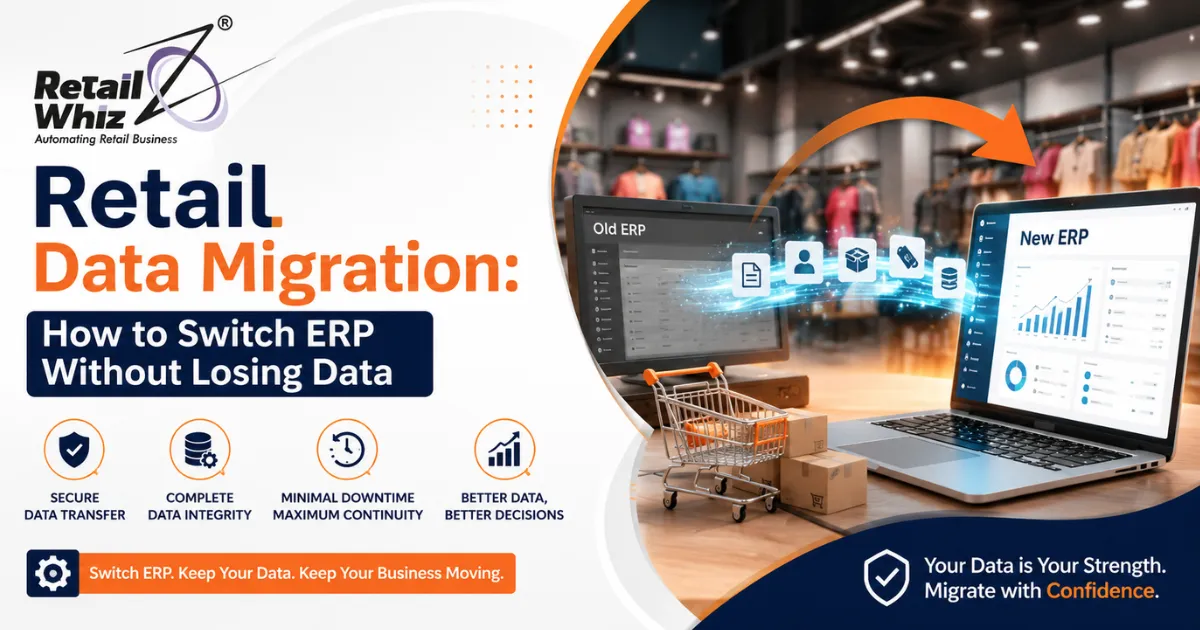
Switching your ERP system is one of the biggest technology decisions a retail business can make. Whether you’re moving from a legacy system to a modern cloud ERP, or consolidating multiple platforms into one, retail data migration is the single most critical – and most risky – part of the entire process.
Get it wrong, and you could lose years of sales history, corrupt your inventory records, or disrupt customer relationships built over time. Get it right, and your new ERP system becomes a growth engine that streamlines operations, improves reporting accuracy, and gives you real-time visibility across every store and channel.
In this guide, we’ll walk through exactly how to plan and execute an ERP data migration for retail businesses – step by step – so you can switch systems confidently without losing a single record that matters.
What Is Retail Data Migration?
Retail data migration is the process of transferring data from an old ERP or point-of-sale (POS) system to a new platform. This includes everything from product catalogs and SKUs, customer records, order history, supplier data, inventory counts, pricing, and financial transactions.
Unlike a simple file transfer, ERP migration involves mapping, cleaning, validating, and testing data so it works correctly in the new system’s structure. Retail businesses in particular deal with high-volume, high-frequency transactional data – POS sales, e-commerce orders, loyalty points, returns – which makes migration far more complex than in many other industries.
If you’re evaluating platforms before migration, it helps to first understand how to choose the right retail ERP system for your business size and sales channels, since your migration strategy will depend heavily on what you’re migrating to.
Why Retail Businesses Struggle With ERP Migration
Before diving into the process, it’s worth understanding why so many ERP implementation projects run into data problems:
- Multiple data sources: POS systems, e-commerce platforms, warehouse management tools, and accounting software all hold different pieces of the puzzle.
- Inconsistent data formats: SKUs, tax codes, and customer IDs are often structured differently across systems.
- Duplicate and outdated records: Years of manual entry create duplicate customers, obsolete products, and inaccurate stock counts.
- Downtime pressure: Retailers can’t afford long outages, especially during peak sales periods.
- Compliance and financial accuracy: Tax records and financial history must reconcile perfectly after migration.
Understanding these challenges upfront helps you build a realistic data migration strategy rather than treating it as a simple copy-paste exercise.
Step-by-Step Guide: How to Migrate ERP Data Without Losing Anything
1. Audit and Inventory Your Existing Data
Before moving anything, create a complete inventory of what data exists and where it lives. This includes:
- Customer master data (names, contacts, loyalty history)
- Product and SKU catalogs
- Inventory levels across all locations
- Historical sales and transaction records
- Vendor and supplier information
- Financial and tax data
- Pricing rules, discounts, and promotions
This audit becomes your migration checklist – the master reference you’ll use to confirm nothing is missing once the new system goes live.
2. Clean Your Data Before You Move It
This is the step most retailers skip – and it’s the one that causes the most post-migration headaches. Data cleansing involves:
- Removing duplicate customer and product records
- Standardizing SKU formats and naming conventions
- Archiving discontinued products instead of migrating them
- Correcting inventory discrepancies
- Validating tax codes and pricing tiers
Migrating “dirty” data into a new ERP simply moves your old problems into a new system – except now they’re harder to fix because the structure has changed. A clean dataset is the foundation of a successful retail ERP migration.
3. Define a Clear Data Mapping Plan
Every ERP system structures data differently. A field called “Customer ID” in your old system might map to “Account Number” in the new one. Data mapping means defining exactly how each field, table, and relationship in your old system corresponds to the new system’s structure.
Key areas to map carefully:
- Product hierarchies and categories
- Customer segmentation and loyalty tiers
- Multi-location inventory structures
- Tax rules by region or store
- Order and return workflows
Skipping proper data mapping is one of the top reasons retail businesses experience inventory mismatches and reporting errors after go-live.
4. Choose the Right Migration Method
There are generally three approaches to moving data:
- Big Bang Migration: All data is moved at once during a scheduled cutover window. Faster, but riskier if issues arise.
- Phased Migration: Data is migrated in stages – for example, product data first, then customer data, then transactional history. Slower, but safer and easier to troubleshoot.
- Parallel Run: Both old and new systems run simultaneously for a period, allowing you to cross-check data accuracy before fully switching.
For most multi-store or omnichannel retailers, a phased migration paired with a short parallel run offers the best balance between speed and safety.
5. Test, Test, and Test Again
Before going live, run multiple rounds of testing:
- Data validation testing: Confirm record counts match between old and new systems.
- Functional testing: Check that workflows like order processing, returns, and inventory updates work correctly.
- User acceptance testing (UAT): Have actual store staff and warehouse teams test real scenarios.
- Reconciliation testing: Match financial totals, inventory counts, and sales figures line by line.
A well-structured retail ERP implementation checklist can help your team stay organized through each testing phase and avoid missing critical validation steps.
6. Plan Your Cutover Window Strategically
Timing matters enormously in retail. Never schedule a full ERP cutover during:
- Peak shopping seasons (holidays, major sales events)
- End-of-month or end-of-quarter financial closing periods
- Days with scheduled promotions or new product launches
Ideally, schedule your cutover during your lowest-traffic period, with extra staff on standby to handle any issues that arise in the first 48–72 hours.
7. Back Up Everything Before Migration
This might seem obvious, but it’s the single most important safety net in any data migration process. Take a full backup of your legacy system – including databases, transaction logs, and configuration files – before migration begins. Store backups in multiple locations, and confirm they’re restorable before you start.
8. Monitor Closely After Go-Live
Migration doesn’t end when the new system goes live. For the first few weeks:
- Monitor inventory counts daily for discrepancies
- Track order processing times and error rates
- Compare sales reports against historical benchmarks
- Keep your legacy system accessible (read-only) for reference during the transition period
This monitoring phase is where most remaining data issues surface, so build time and resources into your post-migration plan.
Common Retail Data Migration Mistakes to Avoid
- Underestimating timeline: Rushed migrations lead to rushed testing, which leads to data loss.
- Skipping data cleansing: Migrating duplicate or outdated records multiplies problems in the new system.
- Ignoring integrations: POS, e-commerce, and accounting integrations must be re-tested, not assumed to work automatically.
- No rollback plan: Always have a contingency plan in case the new system needs to be rolled back.
- Poor staff training: Even perfect data migration fails if staff don’t know how to use the new system correctly.
If you’re still comparing platforms, reviewing top ERP software features for retail businesses before committing can help you avoid choosing a system that creates migration complications down the line.
How Long Does ERP Data Migration Take?
Timeline varies based on business size and data complexity, but as a general benchmark:
- Small retailers (single store): 4–8 weeks
- Mid-sized retailers (multiple locations): 3–6 months
- Enterprise/omnichannel retailers: 6–12 months
These timelines include data audit, cleansing, mapping, testing, and post-go-live monitoring – not just the technical transfer itself.
Final Thoughts
A successful ERP switch isn’t about speed – it’s about precision. Retail businesses that treat data migration as a strategic project, rather than a technical afterthought, are the ones that come out the other side with cleaner data, better reporting, and systems that actually support growth.
Take the time to audit, clean, map, and test your data thoroughly. Your future self – and your finance, inventory, and customer service teams – will thank you.
Frequently Asked Questions (FAQs)
1. What is the biggest risk in retail ERP data migration?
The biggest risk is data loss or corruption during transfer, often caused by poor mapping or skipping data cleansing, leading to inventory errors and reporting inaccuracies post-migration.
2. How do I ensure no data is lost during ERP migration?
Back up all data before migration, clean records first, use phased migration, run parallel systems briefly, and validate data counts and totals thoroughly before final cutover.
3. Should I migrate historical sales data to my new ERP?
Yes, historical sales data supports reporting, forecasting, and compliance. Archive very old or irrelevant records separately if they aren’t needed for daily operations.
4. How long does a typical retail ERP migration take?
Timelines range from 4–8 weeks for small retailers to 6–12 months for large omnichannel businesses, depending on data volume, system complexity, and testing requirements.
5. Can I migrate ERP data without downtime?
Some downtime is usually unavoidable, but phased migration and parallel runs minimize disruption significantly compared to a single “big bang” cutover approach.